
Submitting Events: Single Touch Payroll Processes
Uploading your initial YTD figures
Because STP receives the employee’s YTD figures, when you commence STP reporting part-way through a year you will have two choices to provide the opening YTD figures:
- Provide an opening year-to-date balance for all employees (active, inactive and terminated) via an STP UE.
OR
- Report year-to-date amounts for current employees through your first payrun STP PE and year-to-date amounts for inactive and terminated employees via an STP UE.
Submitting your Payrun via a Pay Event
The ATO’s Payroll Reporting – Scenarios document states: An employer is required to report to the ATO, all payments on or before the payday, through a payroll event..
In simple terms this means that you are required to report your payrun details via a PE once you have made that payment to your employees.
IMPORTANT: Do not send the STP PE information to the ATO until you have made the payment to the employees via your EFT banking processes.
You have two choices for the PE upload;
- Use the STP upload option on the final screen of the Payrun Wizard
- Use the Ready Pay menu bar option called Single Touch Payroll > Process

Submitting an STP Pay Event via the Payrun Wizard
The Single Touch Payroll Submit screen is the final step of the wizard before completing the payrun.
All the required information is pre-filled because the system already knows which payrun you are processing.
To submit this payrun to the ATO;
- Process and complete the regular Payrun, including EFT Processing and pay advices.
- On the STP Submit screen of the Payrun Wizard, tick the Declaration statement checkbox and click Submit.

Note: the Declaration will have different wording if you are a bureau service providing payroll services to your clients using Ready Pay. - The Log will show the status of the submission. It should initially show a status of ‘Sent’ which indicates that the upload has passed initial validation checks and has been sent to the ATO STP gateway. If the log returns an error, there may be several causes for this;
- there may be an authentication error
- some mandatory information was either not present or has failed the validation checks
- the ReadyTech gateway is temporarily unavailable.
- For simple validation errors, the text of the error message should indicate the nature of the missing/invalid data so you may be able to correct the data & re-submit your PE.
Go to Submitting an STP Pay Event via STP Upload below for further instructions on uploading or correcting an existing STP batch.
Submitting an STP Pay Event via STP Upload
- Access STP Uploads via Single Touch Payroll > Process button on menu bar.
- Click the Add New button:

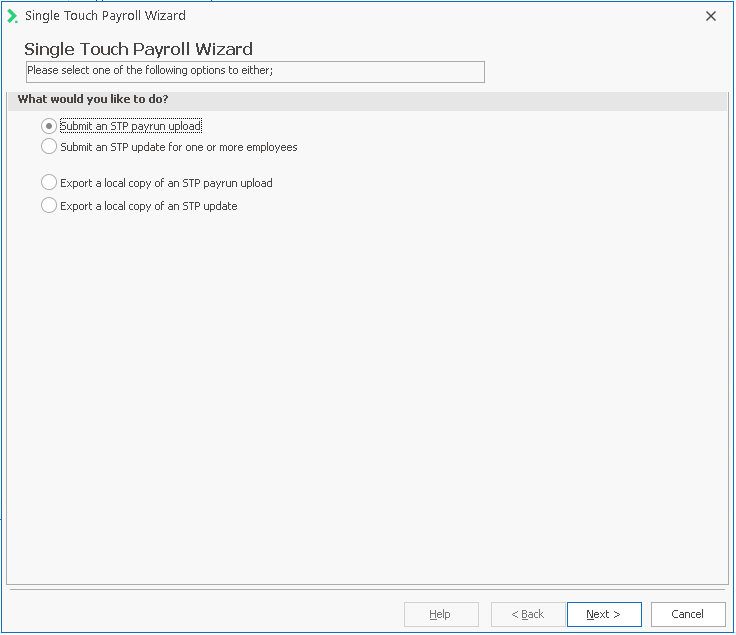
- To send your payrun PE, select Submit an STP payrun upload, then click Next.
- The next screen gives you a list of completed payruns to choose from, for example:

- Check the Select box for the required payrun that is to be uploaded.
- Click Next to display the Submit screen:
- When you are certain that all the details are correct and you have selected the correct Run Number, tick the Declaration checkbox and click Submit.
- The Log will show the status of the submission.
It should initially show a status of ‘Sent’ which indicates that the upload has passed initial validation checks and has been sent to the ATO STP gateway. If the log returns an error, there may be several causes for this;
The Single Touch Payroll Wizard is displayed, giving you these options:
This screen will automatically display payruns for the past twelve months.
You may want to click the 3 or 6 buttons to display payruns for that number of months, or the All button to show all payruns: 
You may also click the Include Processed button to see payruns that have previously been processed through to STP during the time frame specified.
Note: you cannot re-submit a payrun that has previously been submitted to the ATO.

Note that if you are submitting payruns on behalf of a bureau, the Disclaimer Statement you see here will be slightly different.
- there may be an authentication error
- some mandatory information was either not present or has failed the validation checks
- the ReadyTech gateway is temporarily unavailable.
- For simple validation errors, the text of the error message should indicate the nature of the missing/invalid data so you may be able to correct the data & re-submit your PE.
-
Click Next/OK to close the submission window.
-
To check for the current status of the PE, double-click the entry in the STP uploads grid and the submit window will re-open.
This time there will be a Check Notifications button available. -
Click the Check Notifications button and the log window will display the current log entries.
In addition, the Log and Notifications tabs in the grid will indicate the current status of this PE.
- That is the completion of the Single Touch Payroll Upload PE process.
Submitting a Full File Replacement
The ATO’s STP procedures allow for the concept of a Full File Replacement.
This allows a company to re-submit the most recently submitted PE, for example if it contained erroneous data.
An example of this in Ready Pay could be where you have submitted the most recent payrun to STP but then reverse the payrun to make some corrections and re-update the payrun.
As you had previously submitted the payrun to STP, you can re-submit it by using the ‘Replacement’ option, but Ready Pay will only activate the Replacement checkbox option for the most recent STP PE submission.
If you determine that your most recent PE submission contains erroneous data and you want to replace it with the newly updated figures;
- Access STP via the Single Touch Payroll icon on the ribbon bar - click on Process.
- Locate the most recent STP entry with a status of Submitted and either double-click it or highlight it and click the Edit button:

- The previous submission details are displayed.

- If the Full file Replacement checkbox is active, this means that this is your most recent STP submission and the Full File Replacement option is available to you.
Tick the checkbox to submit the replacement PE. - When you are certain that all the details are correct, you have selected the correct Run Number, tick the Declaration checkbox and click Submit.
Note that if you are submitting payruns on behalf of a bureau, the Disclaimer Statement you see here will be slightly different.
- The Log will show the status of the submission.
It should initially show a status of Sent which indicates that the upload has passed initial validation checks and has been sent to the ATO STP gateway.
If the log returns an error, there may be several causes for this;
- there may be an authentication error
- some mandatory information was either not present or has failed the validation checks
- the ReadyTech gateway is temporarily unavailable.
- For simple validation errors, the text of the error message should indicate the nature of the missing/invalid data so you may be able to correct the data & re-submit your PE.
-
Click the Check Notifications button and the log window will display the current log entries.
In addition, the Log and Notifications tabs in the grid will indicate the current status of this PE. - That is the completion of the Single Touch Payroll Full File Replacement process.
Submitting an STP Update Event for one or more employees
An UE allows you to send the ATO updated employee YTD information at any time.
There may be several reasons for this including;
- uploading initial YTD opening balances when commencing part-way through a financial year
- sending through the ‘Finalized’ indicator once you have completed a financial year
- updating YTD balances for an employee that isn’t being paid again
- making a correction to a previous financial years figures etc
To send an UE to the ATO;
- Access STP via the Single Touch Payroll icon on the ribbon bar - click on Process.
- Click the Add New button
- The Single Touch Payroll Menu window is displayed, giving you these options:

- Select Submit an STP update for one or more employees, then click Next.
- The next screen gives you a list of the employees to choose from, for example:
- Select the financial year and employees that you wish to include in the STP UE and click Add to Update
- Click the Employees to Update tree node to confirm that the correct employees have been selected.
The number in brackets (xx) indicates how many employees will be included in this UE.
- Click Next and the Update Submit screen will be displayed.

- The current financial year is displayed.
If you are sending an UE for the current financial year then ensure it is selected.
If you are sending an UE for a correction in a previous financial year then select the previous Year from the drop down list. - Tick the Finalize checkbox if you are declaring that these are the final figures for the selected employees for the selected financial year.
For further information see "Finalizing a Financial Year" - When you are certain that all the details are correct, tick the Declaration checkbox and click Submit.
Note that if you are submitting an update as a bureau, the Disclaimer Statement you see here will be slightly different. - The Log will show the status of the submission.
It should initially show a status of Sent which indicates that the upload has passed initial validation checks and has been sent to the ATO STP gateway.
If the log returns an error, there may be several causes for this;

- there may be an authentication error
- some mandatory information was either not present or has failed the validation checks
- the RedyTech gateway is temporarily unavailable.
- For simple validation errors, the text of the error message should indicate the nature of the missing/invalid data so you may be able to correct the data & re-submit your UE.
- Click the Check Notifications button and the log window will display the current log entries.
In addition, the Log and Notifications tabs in the grid will indicate the current status of this PE. - That is the completion of the STP UE process.
- Click Next/OK to close the submission window.
Checking for ATO STP Notifications
When you submit an STP PE or UE the ATO adds your file to a message queue.
This queue processes the submissions from Australian employers in the order they are received and therefore it may take some time for your submission to be processed.
Automatically retrieving ATO Notifications
Rather than manually checking for return messages, Ready Pay automatically checks the status of all your current STP batches and displays any return messages (eg success, warnings and errors).
It does this every time you login to Ready Pay or change company.
Manually checking for ATO Notifications
To manually check for ATO notifications for a PE or UE, access STP via the Single Touch Payroll icon on the ribbon bar - click on Process.
- Select your previously Submitted PE or UE by either selecting it and clicking Edit or by double-clicking.

- Click the Check Notifications button.
- Click the Notifications tab and the various ATO messages are displayed in the grid.
You can double-click to view additional details for each message. -
The Status Type and Notifications columns in the STP uploads grid will change to indicate the current status of this PE or UE.
The Single Touch Payroll Submit window is displayed.
STP Notifications - Message Status and Types
- The STP Notifications are shown on the following screen;

- SENT – this STP batch has been successfully sent to the ATO but Ready Pay has not yet received a return notification as to its status.
- COMPLETE – this STP batch has been processed successfully by the ATO with no errors.
- COMPLETE_WITH_WARNINGS – this STP batch has been processed successfully but there are one or more warning messages that need to be verified.
All employees, including the employees with warnings have been processed.
You do not need to re-submit a new PE or UE but should check what the warnings are. - COMPLETE_WITH_ERRORS - this STP batch has been processed successfully but there are one or more employee-related error messages that need to be verified.
Employees without errors have been processed but employees with errors have not.
You do not need to re-submit a new PE or UE but should correct the employees with errors so that your subsequent PE or UE for those employees is successful. - ERROR – this STP batch is unsuccessful as there are one or more errors that are preventing it from being processed.
As a result, no employees have been processed.
You will need to correct the error/s and re-submit a new PE or UE.
Return to Intro to Single Touch Payroll